On this page
Self Service Center overview
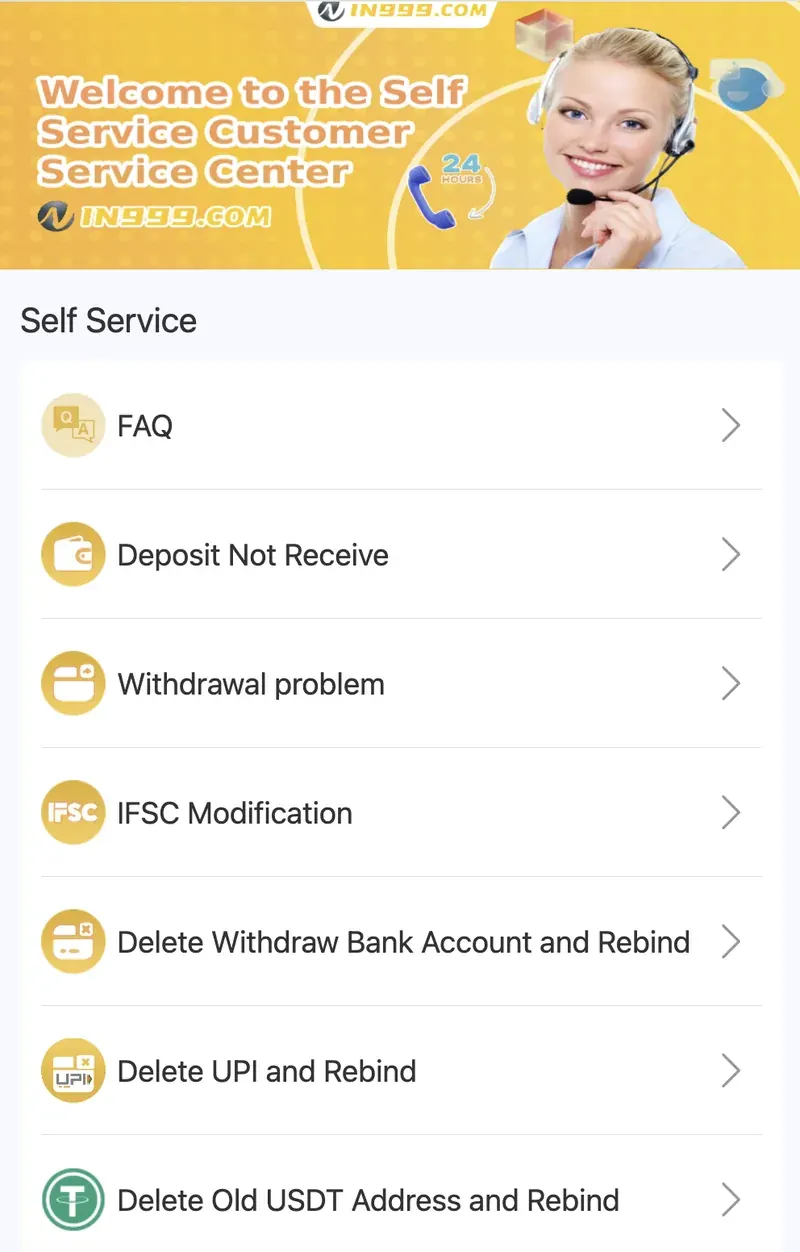
The in999 Self Service Center is a 24-hour support portal inside the app. It is accessible from the Account tab. The center handles the most common user queries without needing to wait for human support.
FAQ
Answers to common questions about deposits, withdrawals, KYC, and games.
Deposit Not Receive
Report a deposit that has not been credited to your account.
Withdrawal Problem
Report a withdrawal that is pending, failed, or stuck.
IFSC Modification
Change the IFSC code linked to your bank account.
Delete Withdraw Bank & Rebind
Remove the current bank account and add a new one.
Delete UPI & Rebind
Remove the current UPI ID and add a new one.
Change Bank Name
Update the account holder name on the bank account.
Change ID Login Password
Reset your in999 login password after OTP verification.
Game Problems
Report issues with specific games (loading errors, black screen, etc.).
IN999 Tutorial Center
Step-by-step guides for new users on every feature.
AR Wallet Tutorial
Guide to activating and using the AR Wallet for ARPay.
Wingo Win Streak Bonus
Information about the Wingo Win Streak bonus and how to claim it.
Deposit not received
Deposit issues are one of the most common support queries. If your deposit has not been credited, follow these steps in order.
Wait 15 minutes
Most "missing" deposits are simply delayed. UPI confirmations can take up to 15 minutes during peak hours.
Check Deposit History
Open the Deposit History screen. If the deposit shows as Pending, tap it to view status. If it shows as Failed, the money will be refunded to your UPI account within 24 hours.
Verify the amount matches
The deposit will only credit if the transferred amount matches the order exactly. If you sent ₹500 but the order was for ₹100, the deposit may not register.
Do not cancel the order
Once you have transferred money, do not cancel the deposit order in the app. Cancelling after transfer can delay or block the credit.
Submit a support ticket
If the deposit is still missing after 30 minutes, open the Self Service Center, select Deposit Not Receive, and submit the transaction ID (UTR number) from your UPI app.
Withdrawal problems
Withdrawal issues usually relate to KYC, bank details, or turnover requirements. Here are the most common causes and fixes.
KYC not completed
The most common reason. Complete KYC through the Self Service Center before attempting any withdrawal.
Wrong bank or UPI details
If the IFSC, account number, or UPI ID is incorrect, the transaction will fail. Verify the details in the binding settings.
Daily limit reached
Only 3 withdrawals are allowed per day. Wait for the counter to reset at midnight.
Turnover not met
If you have claimed a bonus, the withdrawal may be blocked until the 1x coding turnover is complete.
Amount below minimum
UPI and bank card require a minimum of ₹110. USDT requires a minimum of ₹1,000. Amounts below the minimum are rejected.
Name mismatch
The name on the Aadhar must match the name on the bank account. If they differ, the bank will reject the transfer.
If the withdrawal is stuck for more than 3 hours, open the Self Service Center, select Withdrawal Problem, and submit a support ticket with the transaction ID.
IFSC modification
If you need to change the IFSC code linked to your bank account, use the IFSC Modification option in the Self Service Center.
- Open the Self Service Center from the Account tab.
- Select IFSC Modification.
- Enter the new IFSC code from your bank.
- Attach a bank statement or passbook photo showing the new IFSC.
- Submit the request. Approval usually takes a few hours.
Delete and rebind UPI/bank
If you need to remove a UPI ID or bank account and add a new one, use the delete-and-rebind options.
- Delete Withdraw Bank Account and Rebind — removes the current bank account and prompts you to add a new one.
- Delete UPI and Rebind — removes the current UPI ID and prompts you to add a new one.
- Delete Old USDT Address and Rebind — removes the current USDT address and prompts you to add a new one.
These options are useful if you change your bank, open a new UPI account, or switch to a different USDT wallet. After rebinding, the next withdrawal will be sent to the new destination.
Change ID login password
If you have forgotten your password or want to change it, you have two options.
Option 1 — Forgot Password link
- On the login screen, tap Forgot password?.
- Verify your identity via OTP sent to your registered mobile number or email.
- Set a new password.
Option 2 — Self Service Center
- Open the Self Service Center from the Account tab.
- Select Change ID Login Password.
- Submit a support request with your identity details.
- A customer service specialist will reset your password after verification.
Support tips
Be specific
Provide the exact time, amount, and transaction ID when reporting an issue. Specific details speed up resolution.
Attach screenshots
Screenshots of the transaction, error message, or payment receipt help the support team diagnose the issue faster.
Use the right category
Select the correct query type (Deposit, Withdrawal, IFSC, etc.). Wrong categories get routed to the wrong team.
Wait 24 hours
Most issues resolve within 24 hours. Repeated submissions can slow down the process.
Never share OTPs
in999 customer service will never ask for your OTP or password. Any request is a scam.
Keep KYC updated
Verify that your Aadhar and bank details are up to date. Most issues are caused by outdated KYC.
Frequently asked questions
Open the in999 app, go to the Account tab, and tap Self Service Center. You can submit a query and a customer service specialist will respond within 24 hours.
The Self Service Center is a 24-hour support portal inside the in999 app. It provides FAQ access, deposit issue reporting, withdrawal problem handling, IFSC modification, UPI rebind, and account password reset options.
Wait 15 minutes first. If the deposit is still missing, open the Self Service Center, select Deposit Not Receive, and submit the transaction ID (UTR number) from your UPI app. Customer service responds within 24 hours.
Withdrawals can be pending due to incomplete KYC, wrong bank details, exceeding the daily limit, or a turnover requirement not being met. Check the Withdraw page for the specific reason.
Open the Self Service Center, select IFSC Modification, and submit the new IFSC code along with supporting bank proof. Approval usually takes a few hours.
Use the Forgot Password link on the login screen, or open the Self Service Center and select Change ID Login Password. Identity verification via OTP is required.
Summary
in999 customer support runs through the Self Service Center inside the app. It handles 12 categories of queries including deposit issues, withdrawal problems, IFSC modification, UPI rebind, password reset, and game problems. Response time is typically within 24 hours. For quick resolution, provide specific details, attach screenshots, and select the correct query category.