On this page
Login options on in999
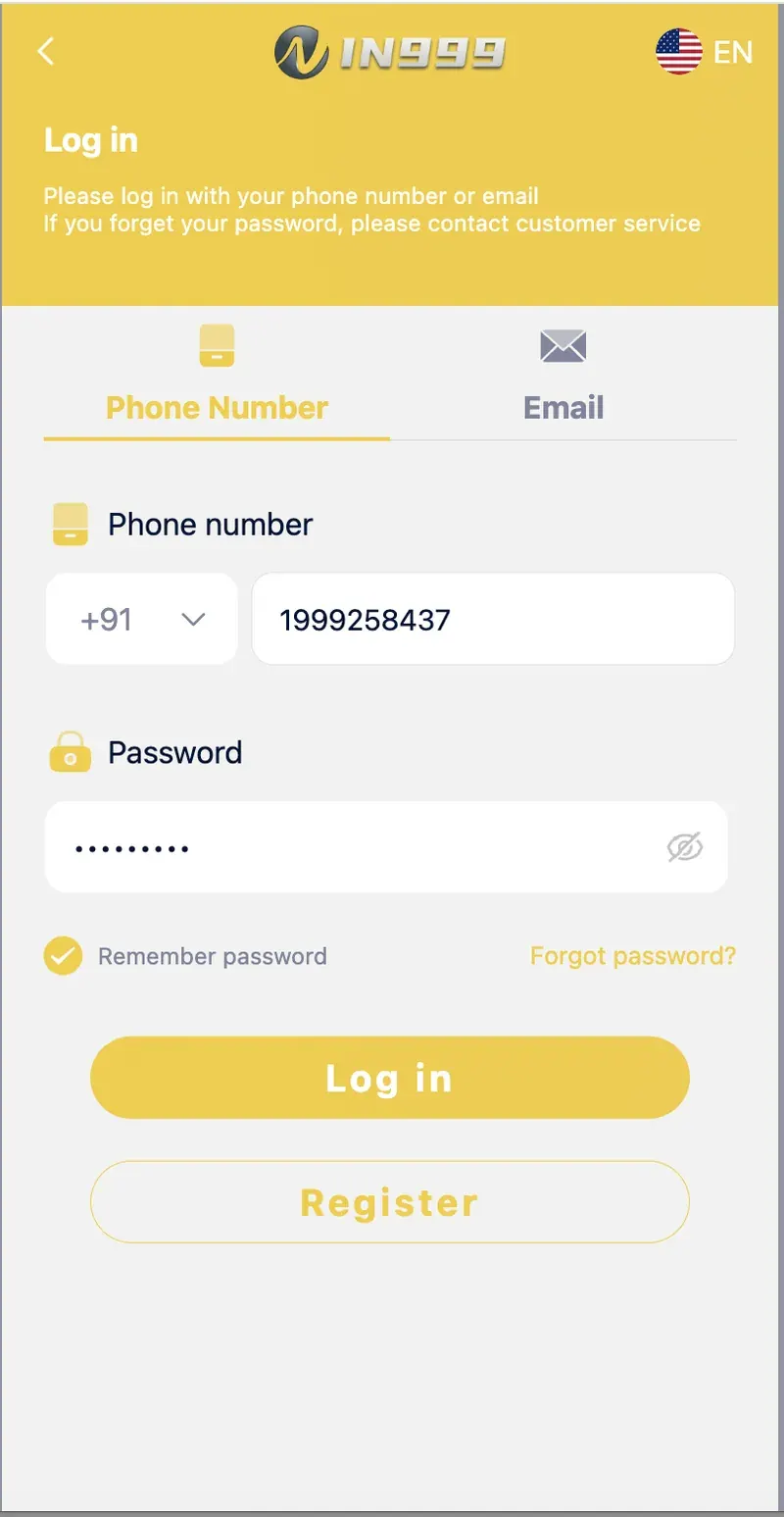
The in999 login screen provides two entry points — Phone Number and Email. The phone option uses the +91 country code and accepts the mobile number linked to your account. The email option accepts the email address you entered during registration.
Both options require the same password you set at sign-up. There is no Google, Facebook, or Apple sign-in. There is also no username field — your identity is either your mobile number or your email, whichever you used during registration.
If you registered with a phone number, use the phone tab. If you registered with an email, use the email tab. Attempting the wrong tab will return a "user not found" error even if your password is correct.
How to login with phone number
Phone login is the default option on the in999 login screen. It takes four steps and less than a minute.
Open the login screen
Launch the in999 app on Android, or open the in999 web login page in any browser. The Phone Number tab is selected by default.
Enter your mobile number
Type your 10-digit mobile number in the field next to the +91 dropdown. Do not add a leading zero or the country code again — the +91 is already selected.
Type your password
Enter the password you created during registration. Tap the eye icon on the right of the password field to reveal the characters if you want to check for typing errors.
Tap Log in
Tap the yellow Log in button. If your account is protected by OTP, enter the code sent to your registered number. You will then be taken to the in999 home screen.
How to login with email
If you registered with an email address instead of a mobile number, use the Email tab.
Switch to the Email tab
On the in999 login screen, tap the Email tab. The phone number field will be replaced with an email input field.
Enter your registered email
Type the full email address you used at sign-up. The address is case-insensitive, but avoid trailing spaces.
Enter your password
Type your password in the field below the email. Use the eye icon to verify the characters if the login fails.
Tap Log in
Tap the yellow Log in button. If the email is not recognised, check for typos or try the phone number tab if your account also has a mobile number attached.
OTP not received — 7 fixes that work
OTP delivery failures are the most common in999 login problem. The following fixes are ordered from fastest to slowest.
1. Wait 60 seconds and request again
Network congestion can delay OTPs. Wait a full minute, then tap Resend OTP. Do not tap repeatedly — multiple requests can void the previous code.
2. Check the spam folder
If OTP delivery is via email, check Spam, Promotions, and Updates folders. Mark the sender as "Not spam" so future OTPs land in the inbox.
3. Restart your phone
A network refresh on your SIM often clears a stuck SMS queue. Turn the phone off, wait 20 seconds, and turn it back on.
4. Disable DND temporarily
Do Not Disturb blocks transactional SMS on many carriers. Turn off DND, request a new OTP, then re-enable DND once the login is complete.
5. Check the +91 country code
Confirm the dropdown shows +91. If the country code is wrong, the OTP is sent to a different number and never arrives.
6. Clear SMS inbox storage
A full SMS inbox can block new messages on some Android devices. Delete old messages and request a fresh OTP.
7. Contact customer service
If none of the above works, open the in999 app's Self Service Center and select the relevant query. A customer service specialist will handle the issue manually.
Forgot password recovery
The in999 login screen includes a Forgot password? link next to the Remember password checkbox. Tapping it opens the password recovery flow.
On the recovery screen, you will be asked to verify your identity. This typically involves receiving an OTP on your registered mobile number or email. Once verification succeeds, you can set a new password.
After resetting your password, log in again and update any saved credentials in your password manager. Do not reuse the same password on other websites.
Black screen error fix
If the in999 app shows a black screen when you try to log in, the installed app version is likely outdated. The current app version is 1.1.1.1. Older versions are blocked from connecting to the server.
To fix the black screen error:
Update the app
Download the latest APK version 1.1.1.1 from the official in999 page. Do not install from third-party APK mirrors.
Clear app cache
Go to Settings → Apps → in999 → Storage → Clear Cache. Do not clear data unless the cache clear does not work, because clearing data removes your saved login state.
Relaunch the app
Close the app fully from the recent apps screen, then reopen it. The login screen should now load without the black screen.
Reinstall if needed
If the black screen persists, uninstall the app completely and install the latest APK fresh. This clears corrupted files from previous updates.
Old number not working — account transfer
If you have changed your mobile number and cannot receive OTPs on the old one, the in999 account can be transferred to your new number after KYC verification. This is handled manually by customer service and is not available as an automated feature.
To request an account transfer, open the in999 app and navigate to the Self Service Center. Select the query type that best matches your issue — for number changes, the closest option is Change ID Login Password or Game Problems. Explain the number change clearly in the description field. Attach a clear photo of your Aadhar card (front and back) and a selfie holding the document. The name must match the name on your in999 account.
Once the work order is submitted, you can track it under [Question in progress]. Approval usually takes a few hours. After approval, your account is linked to the new number.
Security tips for your in999 account
Use a strong password
Combine uppercase, lowercase, numbers, and symbols. Avoid birthdays and your mobile number. Change the password every 90 days.
Enable Remember password only on your device
Never enable the Remember password option on a shared phone or a public computer. Anyone with access to the device could log in.
Do not share OTPs
in999 customer service will never ask for your OTP. Any request for an OTP is a scam. Do not forward OTP messages to anyone.
Log out from shared devices
On the Account tab, tap Log out when using a shared phone. Confirm the logout in the dialog that appears.
Review login history
Open the Account tab and check the Game History and Transaction screens periodically. If you notice activity you do not recognise, contact in999 customer service immediately.
Frequently asked questions
Open the in999 login page, choose the Phone Number or Email tab, enter your +91 mobile number or email, type your password, and tap Log in. If prompted, complete OTP verification.
OTP delivery can fail due to DND being active, network congestion, incorrect country code, or SMS inbox filters. Restart your phone, turn off DND, wait 60 seconds, and request a fresh OTP.
Tap the Forgot password link on the in999 login screen, verify your identity via OTP, and set a new password. If automated reset fails, contact in999 customer service through the Self Service Center.
The app version is outdated. Update to in999 app version 1.1.1.1, clear the app cache, and relaunch. If the issue continues, uninstall and reinstall the latest APK.
No. in999 requires a password for every login. If you have forgotten the password, use the Forgot password link to reset it via OTP verification.
in999 does not officially support multi-device login on the same account at the same time. Logging in on a second device may log out the first. The platform advises using one device per account.
Summary
The in999 login process supports two authentication methods — mobile number and email. Both require a password. If you face OTP issues, the most common causes are DND, network congestion, or an incorrect country code. Forgotten passwords can be reset via the Forgot password link. The black screen error is fixed by updating to app version 1.1.1.1. For persistent issues, the Self Service Center inside the app provides 24-hour support.